
Currency
Squad
Squad
OnsaFX Broker Account Setup & Deposit Guide
Important: do not sign up through a direct mobile app search. You must use the link above so your account is routed correctly for VIP access.
Seven steps from sign up to VIP access
Account Registration
- Open the official link above to access the OnsaFX Client Portal.
- Select Account Type (Individual) and enter your First Name and Last Name exactly as shown on your passport or official ID.
- Enter your Email Address, set a strong Password, select your Country of Residence and add your phone number.
- Check the policy box and click Sign Up.
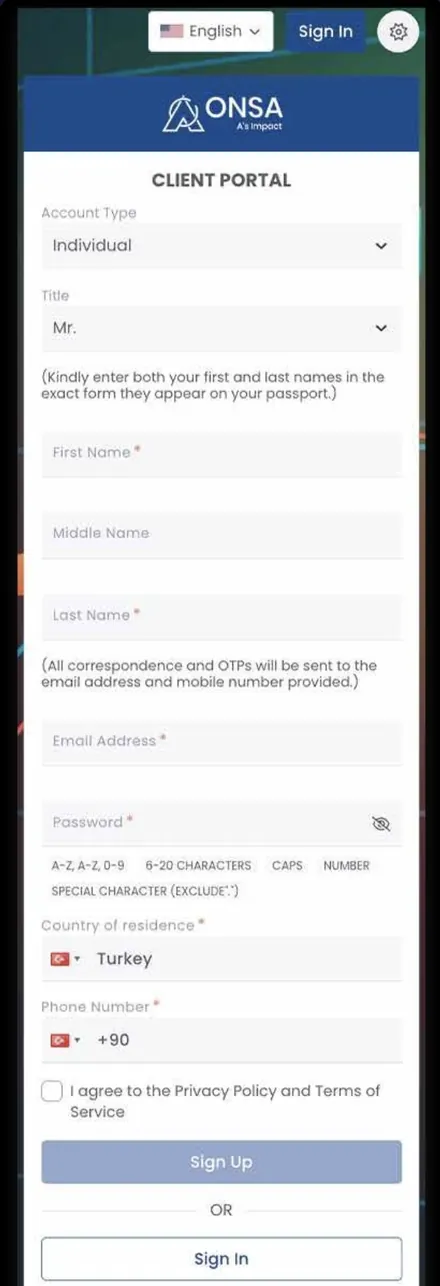
The OnsaFX sign up form
Personal Information & Address
- Enter your legal details, including Date of Birth, Gender and Nationality.
- Fill in your Current Residential Address. It must match your proof of residence document.
- Complete the regulatory checkboxes (U.S. citizenship and Politically Exposed Person declarations), then click Next.

Personal information and address details
KYC Document Upload
- Under Proof of Identity (POI), choose your document type (National ID, Passport or Driving License) and upload clear front and back images.
- Under Proof of Residence (POR), choose your document type (Bank Statement, Utility Bill, etc.) and upload a document issued within the last 3 months.
Accepted file types are .jpg, .pdf, .png, .doc and .docx, up to 12 MB per file.

POI and POR document upload
Confirm Upload & Processing
- Review the verification document table at the bottom of the portal page.
- Make sure every uploaded file shows the status Processing.
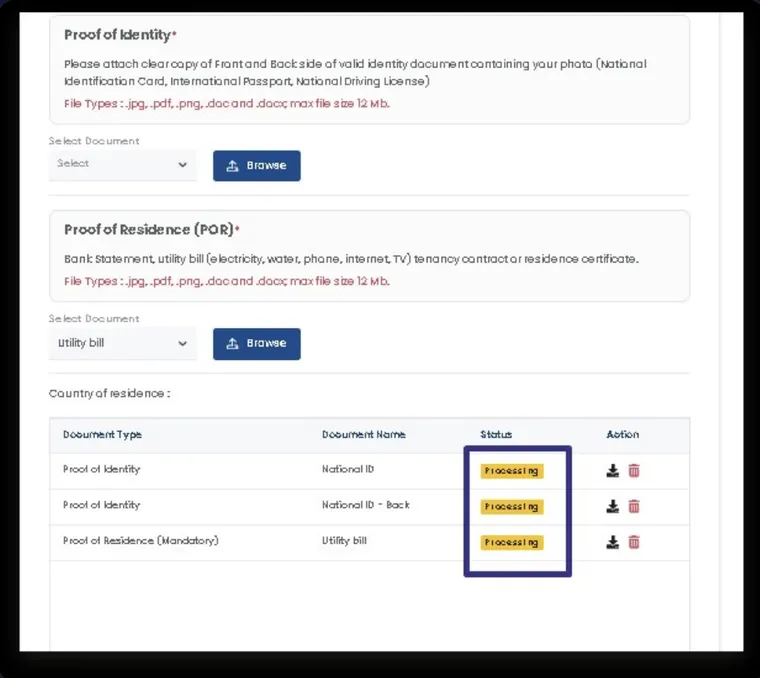
All documents showing Processing status
Account Credentials & Deposit
- Once complete, your OnsaFX Trader's Room will display your MetaTrader Account Credentials (Login, Account ID, Server).
- Fund your account, then take a screenshot of the confirmation screen alongside your completed Deposit Confirmation.
For your own safety, reset your password after your first login and keep your credentials secure.

Your live trading account confirmation screen
Log Into MetaTrader 5
- Download the MetaTrader 5 app from the App Store or Google Play. On desktop, download MT5 from your OnsaFX Trader's Room.
- Have your credentials from the confirmation screen ready: your MetaTrader Login, Password and Trading Server.
- In the app, go to Settings, tap New Account, then choose Login to an existing account.
- Search for the OnsaFX server name from your credentials, enter your Login and Password, and connect.
- Your account balance showing at the top of the Trade tab means you are connected and ready.
If the server does not appear in search, double check the exact server name on your confirmation screen or contact support below.
Unlock VIP Access
- Send your Full Name, Account ID and Deposit Screenshot to your Currency Squad onboarding representative.
- Once confirmed, you will be added to the VIP group.
Need help during setup?
If you run into any issues with account creation, document upload or your deposit, contact OnsaFX Official Support directly: